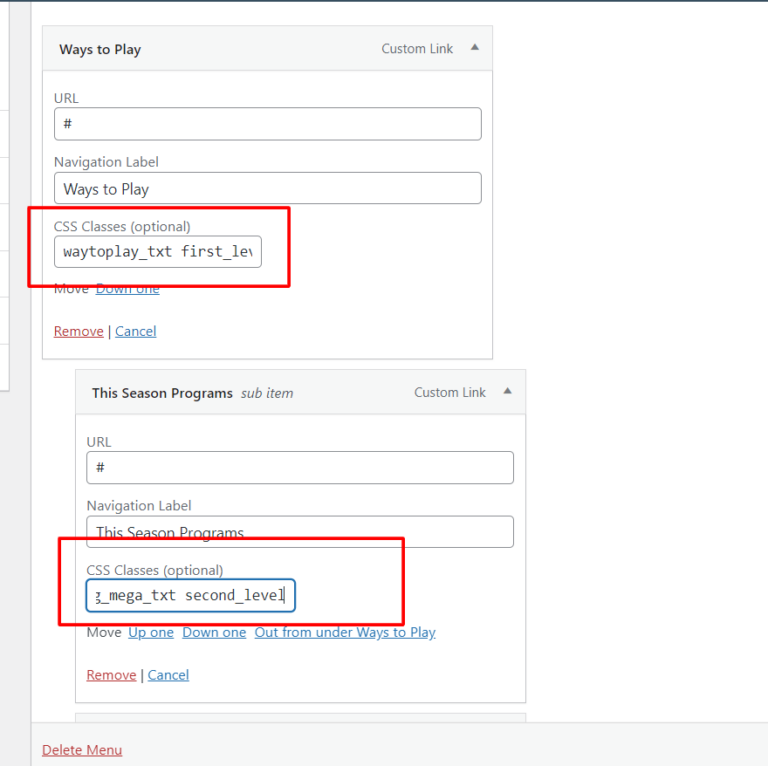
While adding menu please give below classes to them
First Level : first_level_menu Second Level : second_level Third Level: thrid_level
How to Add Menu
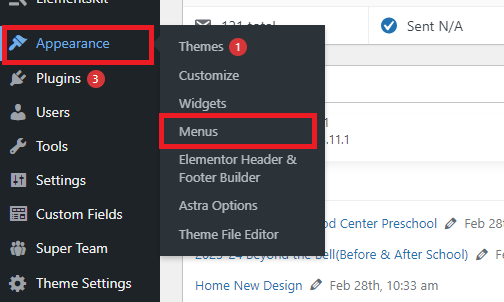
Hover your mouse over Appearance, and select Menu from the secondary menu in the left sidebar
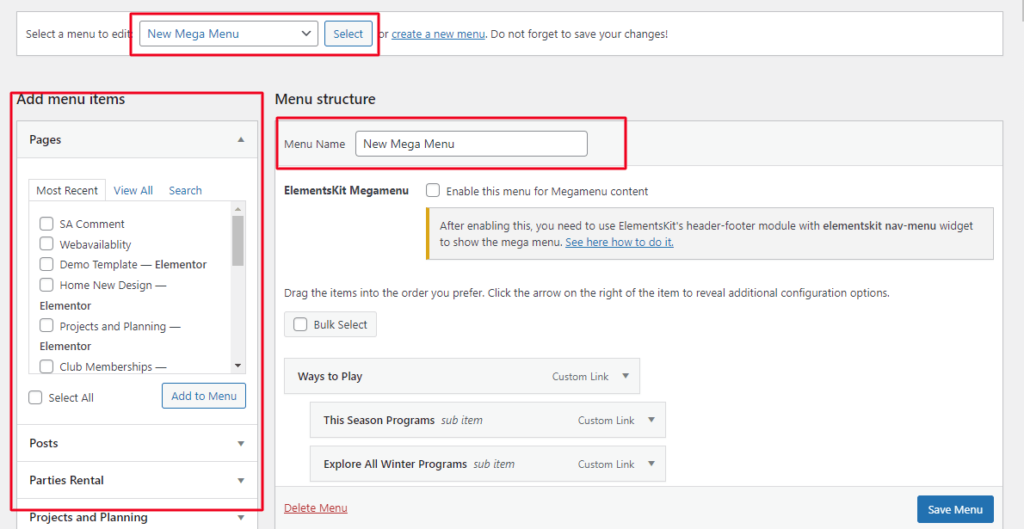
Here you can Add menu -> Select Menu on which we have add a page -> On left sidebar you can add menu item.
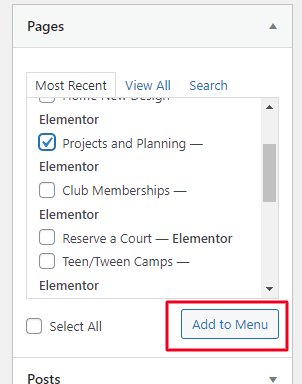
For Example : If you want to added a page select page which you want to add -> Click on Add to Menu.
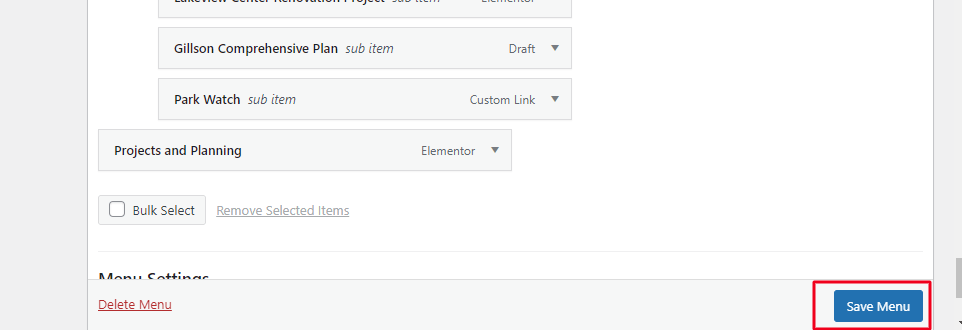
Page is added on your Menu -> Order of your menu by dragging the titles -> Click on Save Menu.
How to Edit Menu
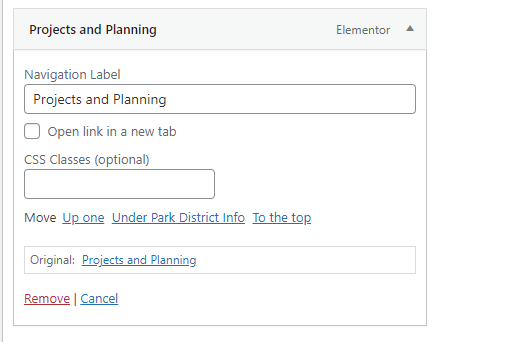
To edit a menu item, click the drop-down arrow next to the appropriate menu item.
Edit your menu item by changing the Navigation Label
You can the order of your menu by dragging the titles to re-order the Menu.
When you are finished, click Save Menu.
How to Delete Menu
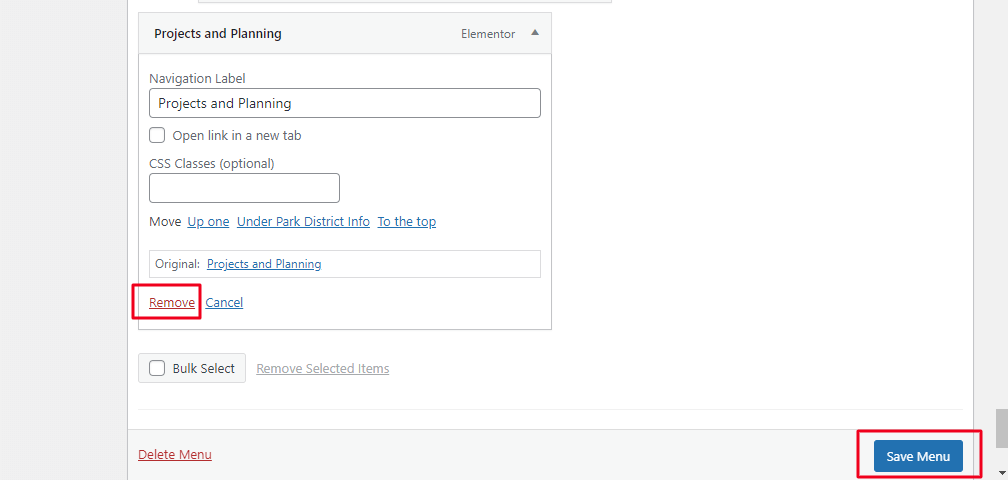
Click the dropdown arrow of the page which you want to delete -> Click Remove to delete the menu item ->When you are finished, click Save Menu.
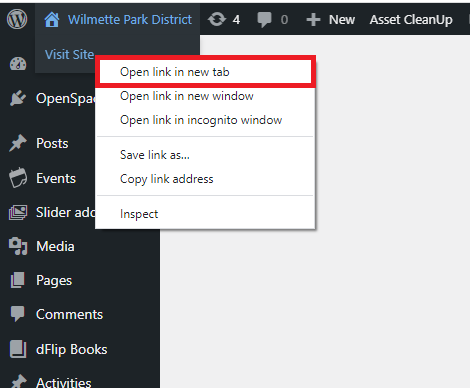
Go to the front-end of the website to check out your work. To do this, you can right-click on the name of your website in the top left corner and select Open in a new tab.