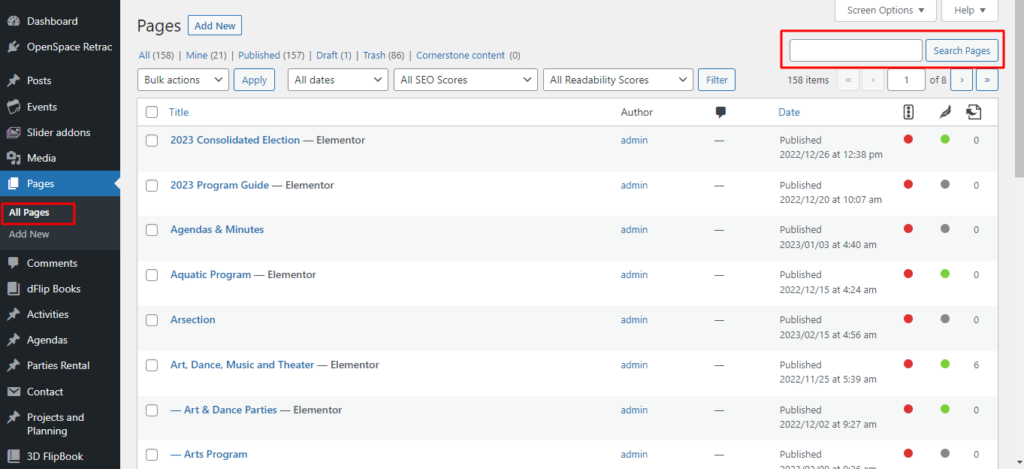
Click Pages in the left sidebar. This will show the Pages screen with a list of all the pages you have in your site.
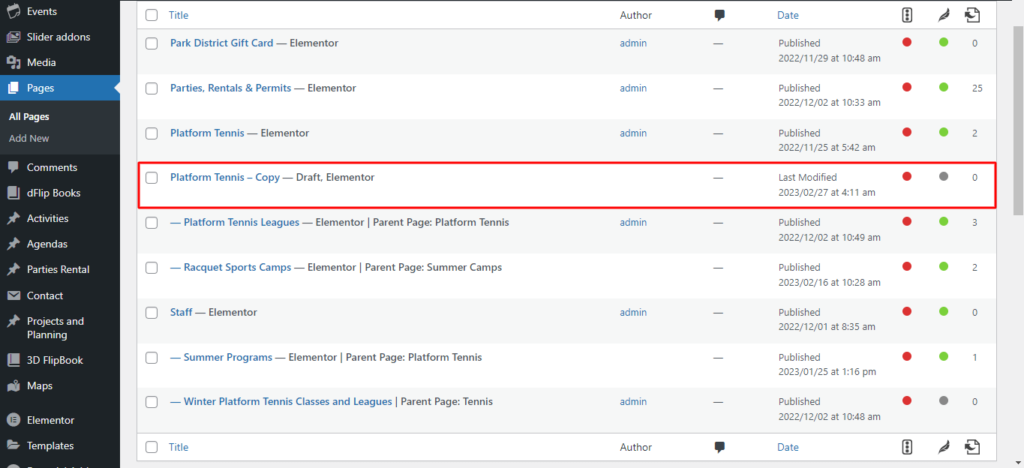
Click the Pages > All Pages in the left sidebar > Search for Variant A page that you want duplicate
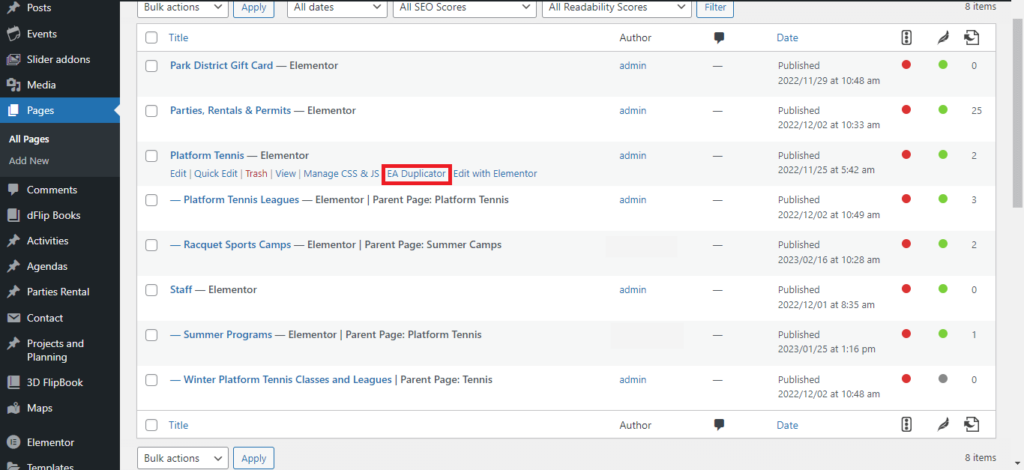
Example : We need to create a duplicate of Platform Tennis. Search for the page.
After getting result hover over the page which you want to edit and you will see some option, In which Click on EA Duplicator.
It will create another copy of platform tennis page which will be in draft.
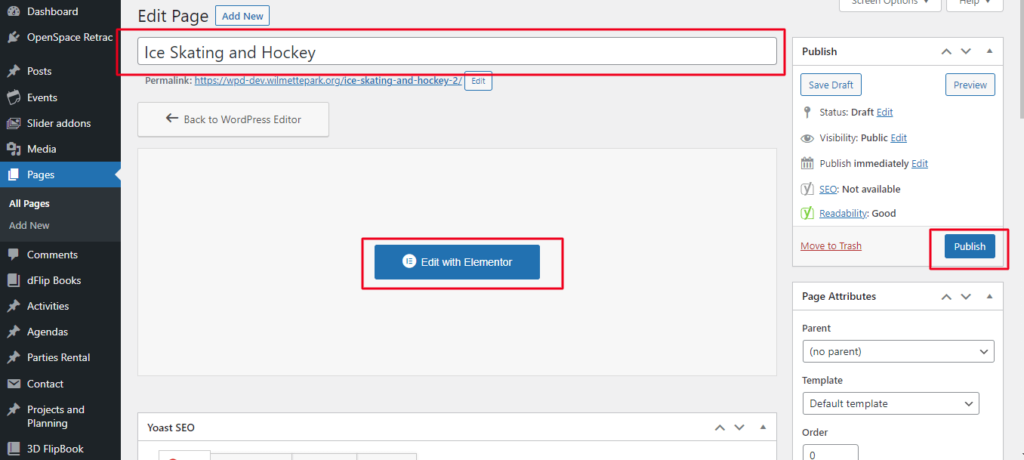
Select on Edit -> Change your Page Title -> Click on Publish
Click on Edit with Elementor -> To edit your page
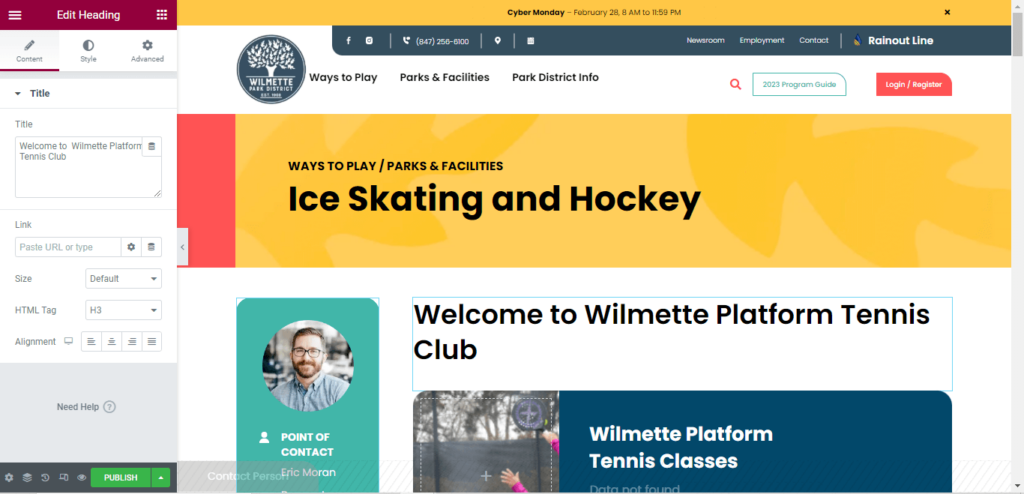
It will direct to elementor page as shown below
Click on that Element which you want to edit, The Sidebar will change. For Example : If you want to change the Title . We have to click on that Title and make the changes you desire.
Either :
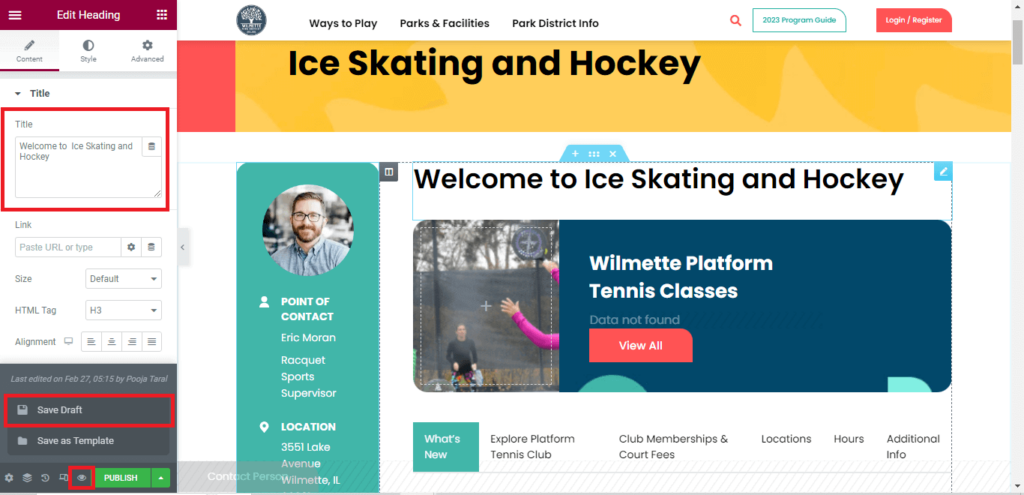
Click Save Draft if you would like to come back later to work on the page more
If you are ready to publish the page, click Publish .
To View your page Click on Eye Icon Next to Update / Publish Button.
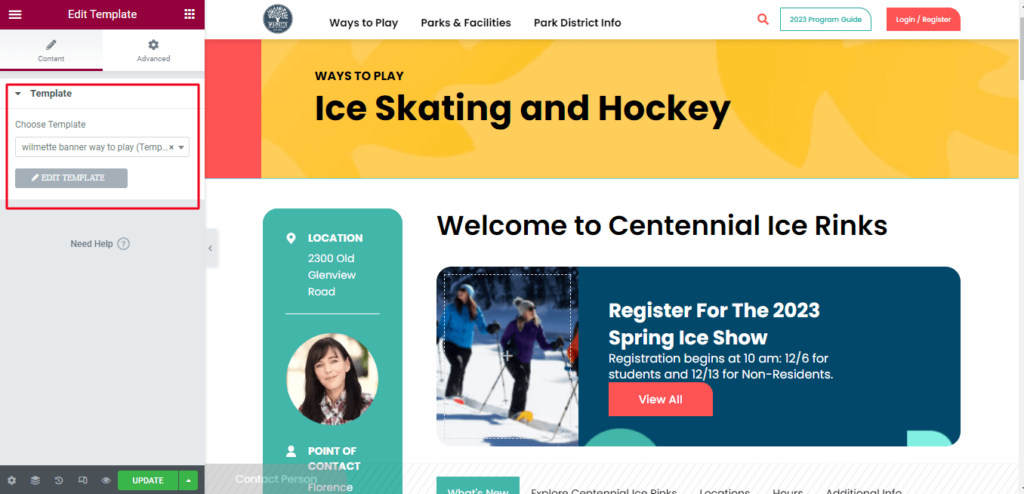
To edit banner : Click on the banner. Left sidebar will change
All Template are created. You just need to import required template on your page.
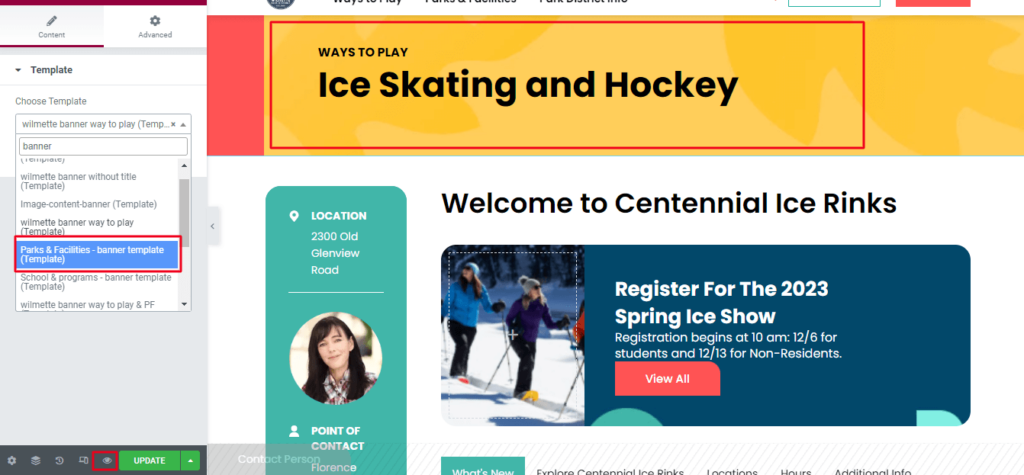
For Example : You want to change a banner from ways to play -> Parks & Facilities -> Simply search for the banner -> Click a Parks & Facilities
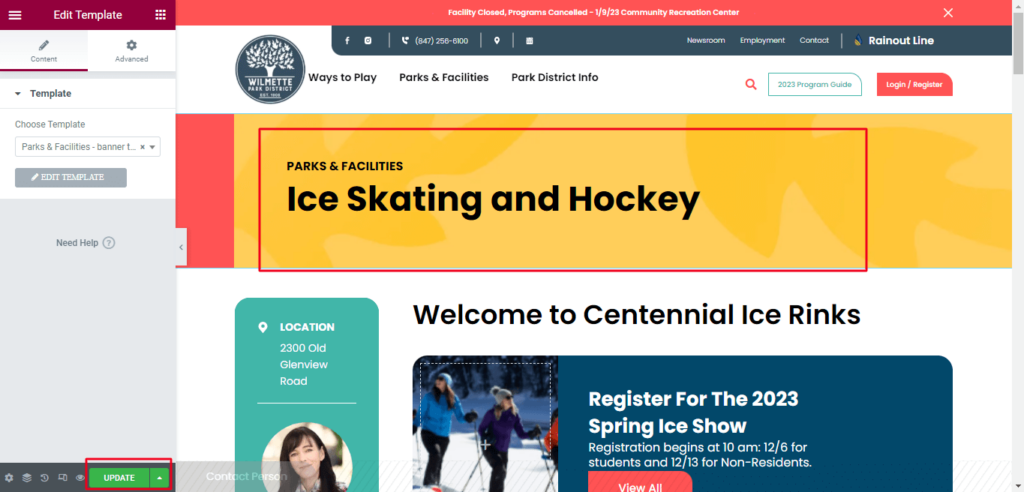
As you can see in below output banner will change.
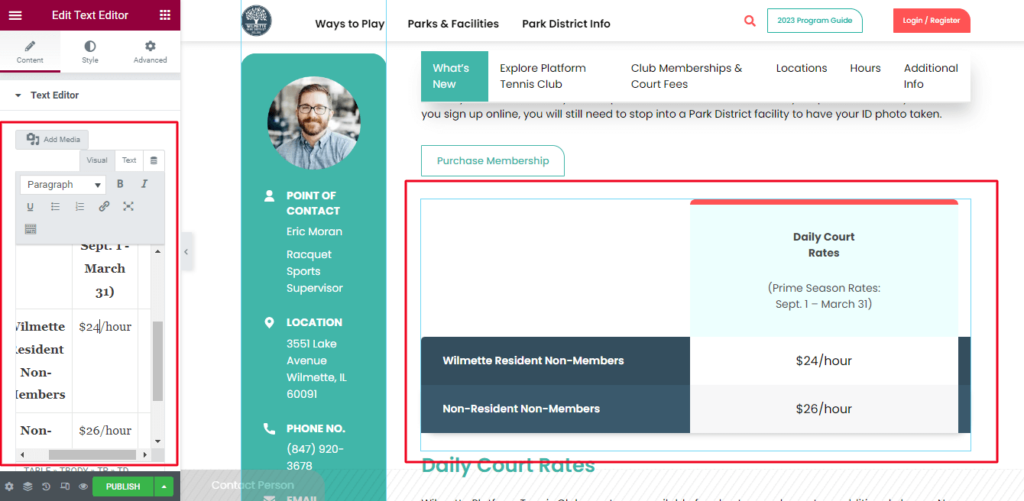
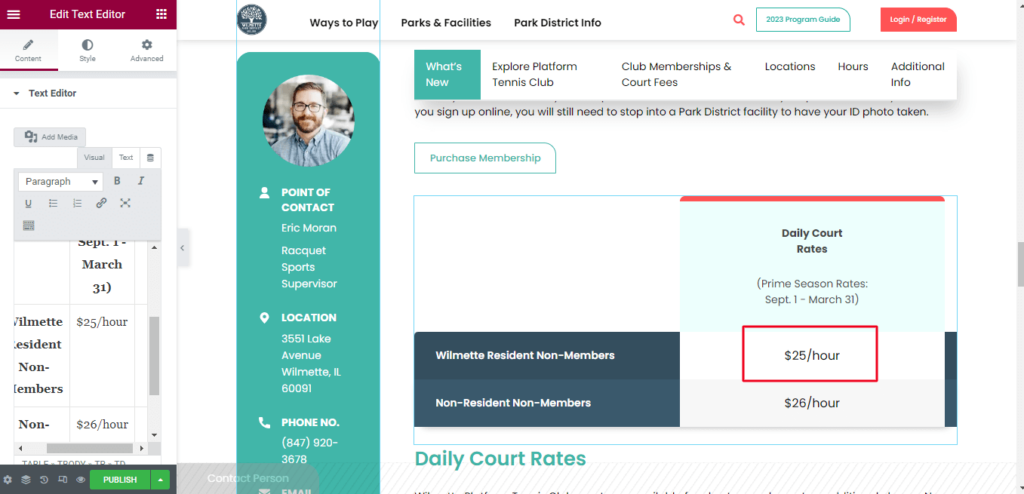
To edit table : Click on table which you want to edit
For Example : Need to change a value or text in table . Click on the value or text which you want to edit on left or right side and you easily change it.
How to Edit Chips
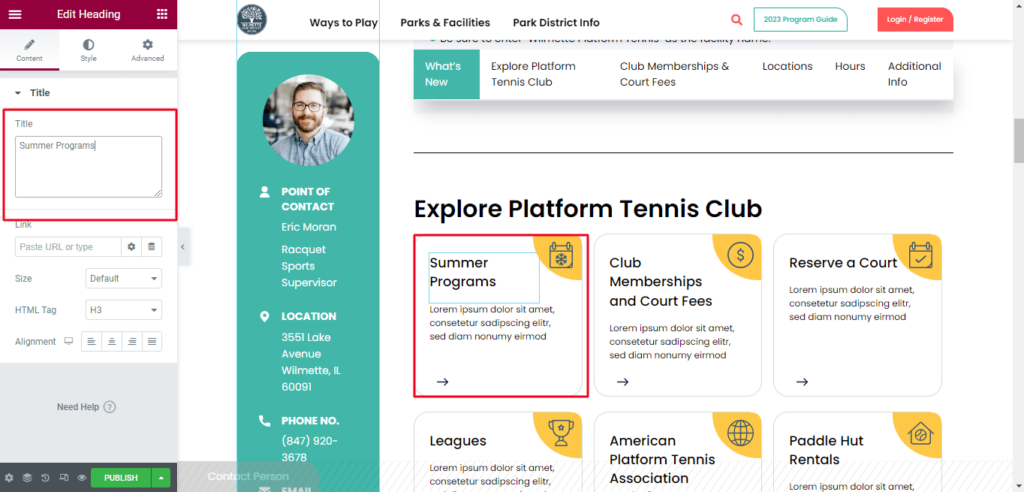
Click on the chips which you want to edit. For example If you want to change summer program Title click on it from left side you can edit your text.
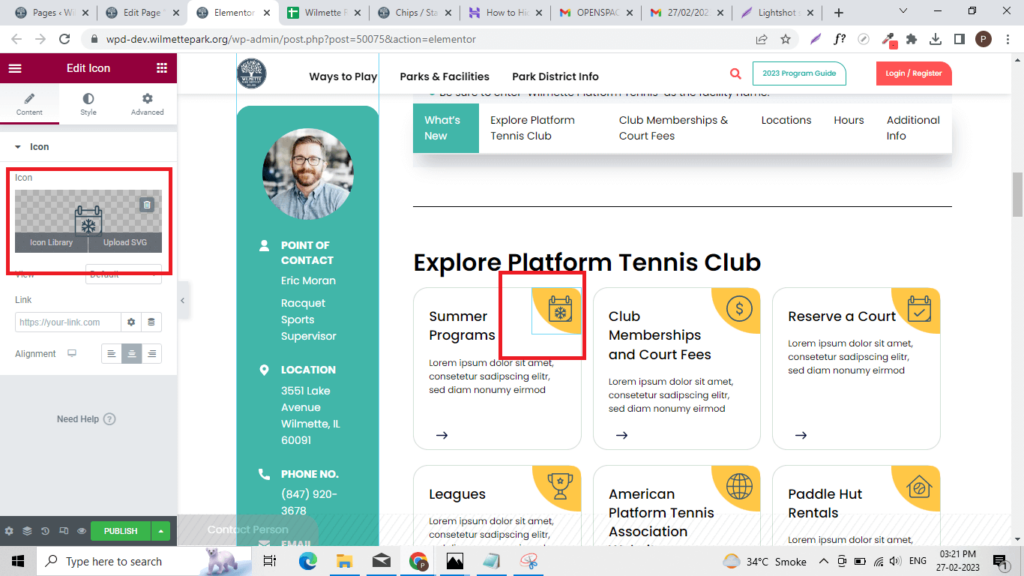
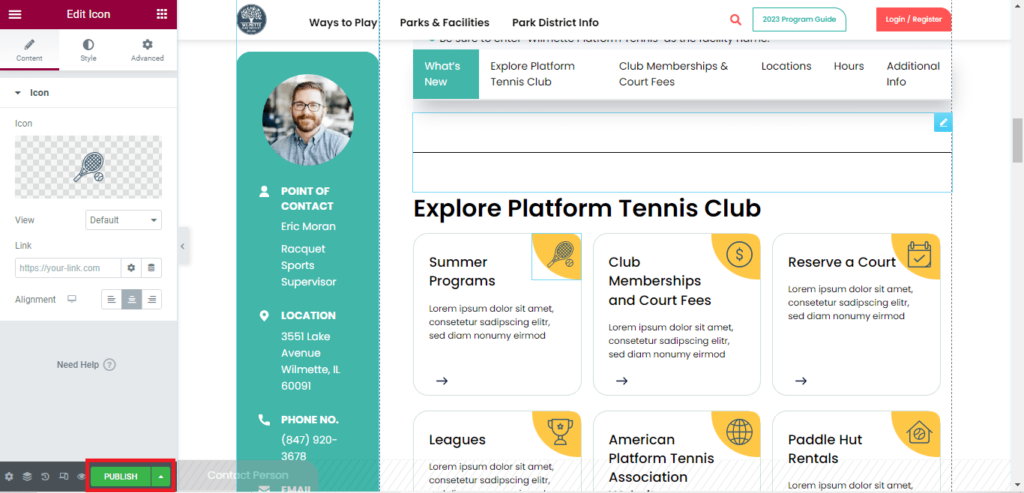
Similarly we change icon of it by click on element > Hover on icon which you want to edit you will get two option(Upload SVG & Icon Library) > Click on Upload SVG or you can select icon from library > After doing all the changes we wanted to do just click on update button.
How to Delete Page
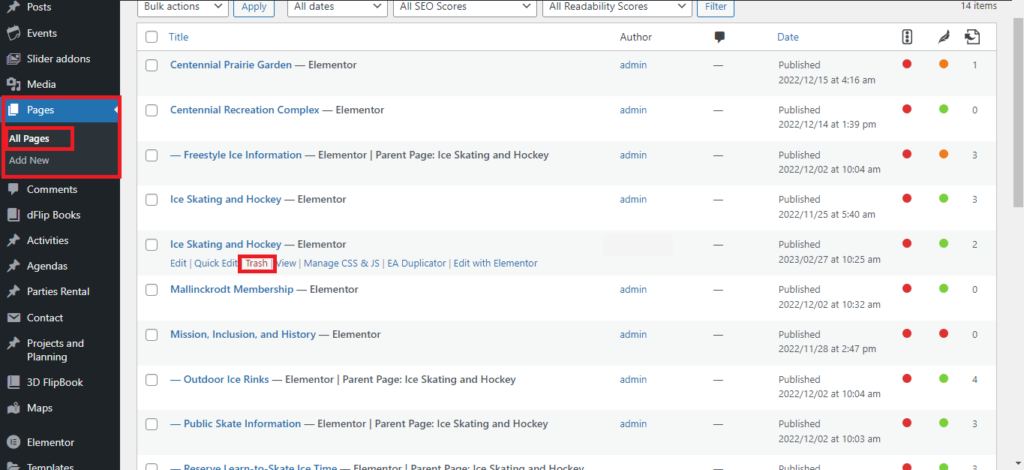
Select the Pages tab at the left side of the window > Hover over the page that you wish to delete, then click the Trash option
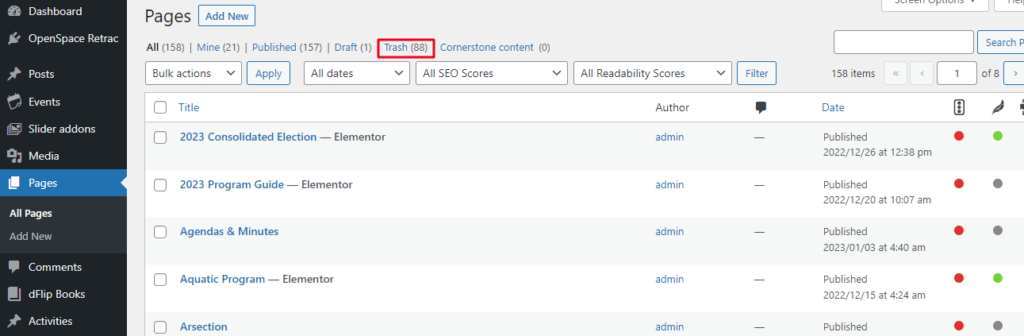
If this is the first page that you have deleted, then you will notice that there is now a Trash link above your page list.
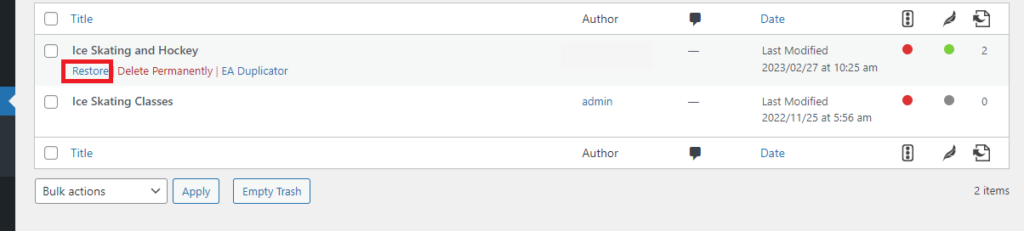
If you click that link you will see all of your trashed pages. You can restore a deleted page by hovering over that page, then selecting the Restore option.
Alternatively, you can permanently delete that page if you are certain that you won’t need it again in the future. Just click Delete permanently to remove that deleted page from the trash folder.